Stuff to pimp your Windows Home Server

Hacking Windows Home Server is a blog dedicated to Microsoft's WHS technology. Brought to you by Donavon West, Microsoft MVP and author of LiveGadgets.net and donavon.com I'll also discuss the Hewlett-Packard HP MediaSmart Server EX470, EX475, EX485, EX487, the T7-HSA Tranquil Harmony Home Server and any other new Home Server hardware platforms that arise. You can also call this hacking or hackz. In any case I will show you some cool things to make your Microsoft Windows Home Server even sweeter.

A blog devoted to getting the most out of your
Windows Home Server by Microsoft MVP Donavon West.

Tuesday, October 6, 2009

Breaking into the Vault (a Look Inside the new HP Data Vault)

The new HP Data Vault is really nothing more than a rebranding of the HP MediaSmart Server targeted at the SoHo market (which I think it's a great idea). So it's no surprise that the hardware will be pretty much the same as well, but let's take a look anyway shall we? As the case is identical to the MediaSmart Servers, this means the standard disassembly instructions work here as well.

The layout looks virtually identical to all of the HP MediaSmart Sever mainboards going way back to the EX470. You'll find the processor up front, the chipset behind that and the RAM on the left; when looking from the front (click on image below to enlarge).

image

The Data Vault continues the use of the same CN9 KVM connector, which means that you can connect a VGA monitor, keyboard and mouse if you so desire (and have the right connector hardware).  JP1 is (I believe) is to reset the CMOS and JP2 is to enable the keyboard. People have had mixed results with JP2 using a USB keyboard and I can't get it to work either. There is discussion that you need a PS/2 keyboard hooked up. You can read more about this on MediaSmartServer.net (hey Alex, notice the silkscreened "C").

image

Here is a shot of the P.O.S.T. screen (I apologize for the blurry camera work).

image

I mentioned in the last article that the power supply has changed over that of the EX47x (especially the fan placement). In the photos on the front and back on the mainboard/power supply, you can see the fan in now in the back on the unit pushing air out, instead on in the front pushing air in.

image image

The processor in the Data Vault X510 is the Intel dual code E5200 which runs at 2.5 GHz. Below is how it is reported with CPU-Z. Technically the chip is NOT an Intel Core 2 Duo 9as reported by CPU-Z, but a Pentium Dual-Core. From the product comparison matrix on Intel's website, it looks like the Data Vault X510 is ripe for an upgrade to an E5300 (2.6GHz) or an E5400 (2.7GHz).

The mainboard is reported as a Wistron (same as the EX47x, EX48x and EX49x series) model 532837-ZH1 and the BIOS is AMI (American Megatrends, Inc). The Southbridge chipset is the Intel 82801IR (ICH9R) (PDF datasheet from Intel).

image image

The four internal SATA drives connect via the ICH9R's AHCI controller, while the single eSATA port is connected to a second SATA controller, the Silicon Image SiI 3531, which does support a port multiplier. Yay!

image

Here is a look at the Device Manager showing most of the pertinent hardware.

image

Bottom Line

The HP Data Vault continues the tradition of the MediaSmart as a sturdy little workhorse. The memory is already maxed out at 2GB and the CPU is a snappy 2.5GHz. The 2.6GHz or 2.7GHz CPU upgrade that I eluded to above is probably not even worth the money for the little performance increase that you will see. Therefore I don't think you will see this unit "hacked" in too many ways. It's pretty nice just the way it is.

Read the entire post, Leave a comment and More...
18 comments (so far). go ahead and add to the noise.

Monday, October 5, 2009

HP StorageWorks X510 Data Vault Unboxing

image

I won't go into an extreme amount of detail (yet), but the HP Data Vault X500 arrived this evening and I wanted to give some unboxing photos and some of my first impressions.

Click on an image below to enlarge:

image image

image image

image image

image

included in the box are:

  • The HP Data Vault X510
  • power cable
  • CAT5E network cable
  • 3 CDs (server recovers, PC restore and software install)
  • Setup poster

Noticeable differenced between the MediaSmart Server and the Data Vault X510 are the words HP Data Vault (instead of HP MediaSmart Server) on the front and simple an HP (instead of HP MediaSmart Server) on the back. Other than that, they are identical. Same single USB port in front, 3 USB, eSATA, power and network in back.

Note that the Data Vault X510 some in 1TB (1x1TB), 2TB (2x1TB) and 3TB (2x1.5TB) models. The one I received was the 2TB model. HP has once again chosen the Seagate drives. I would have preferred the Western Digital green drives, but then again if you follow my blog at all, you already knew that. :)

There is one other change that is not immediately apparent. the power supply has a fan in the rear that draws air from the case. In the older models the fan was in front and it pushed air into the case. You can make this out my looking at the read photo of the two side-by-side above. More on this once I break out my trusty #00 Phillips head screwdriver. :)

Installing the Connector Software

Installing the connector software as as easy as it in with the HP MediaSmart series. The only thing that I noticed was the default name of the server has changed from HPSERVER to HPSTORAGE.

image

image

Wow! Perdy (the main HP tab on the Home Server Console!

image

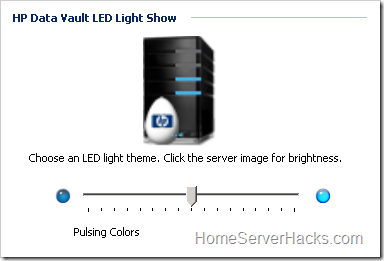
Don't fear, the Easter Egg was left in as well:

image

The Data Vault runs the same MediaSmart 3.0 software as the EX49X series so it's no surprise that the multimedia features were left in. The folks at HP indicated that this may change down the road as they may not be utilized (or even wanted) by many small businesses. I would look for some better value added Add-ins that specifically target small businesses.

Also note a bit of confusion about the name. On the HP official literature and website, it is referred to as the HP StorageWorks X510 Data Vault. On the unit itself and on the software, it is simply called the HP Data Vault. I think that HP StorageWorks X510 Data Vault is probably what it's mother call it. It's friends simple call it HP Data Vault. :)

*** Update *** For a deeper dive into the hardware itself, see the article Breaking into the Vault (a Look Inside the new HP Data Vault)

Read the entire post, Leave a comment and More...
7 comments (so far). go ahead and add to the noise.

Thursday, October 1, 2009

Add-In Author Interview #8

image

Today I was featured in Home Server Land's series "The Interviews". And be sure to check out the other interviews, like the one with WHS Disk Management author Sam Wood. His is a lot more interesting than mine. :)

Read the entire post, Leave a comment and More...
4 comments (so far). go ahead and add to the noise.

One More Year, One More Year!

image

I received this seconds ago:

Dear Donavon West,

Congratulations! We are pleased to present you with the 2009 Microsoft® MVP Award! This award is given to exceptional technical community leaders who actively share their high quality, real world expertise with others. We appreciate your outstanding contributions in Windows Home Server technical communities during the past year.

So it looks like you are all stuck with me for at least another year! :) I know that HSH has been quite barren lately and I hope to pick things up soon. I have a few articles that are in the works so please be patient a little while longer. And thank to all of you for your support and well wishes during my trying times.

Donavon

Read the entire post, Leave a comment and More...
1 comments (so far). go ahead and add to the noise.

Tuesday, September 29, 2009

Free Microsoft Security Essentials Anti-Virus Software

image

Not exactly Windows Home Server related (there is a lane tie-in), but I thought you may want to know that Microsoft today has released it's Security Essentials anti-virus software for XP, Vista and Windows 7 (both x86 and x64).  Go out and get your free copy here. I hear that analysts are saying that it's actually pretty good.

image

So what's the lame tie-in to Windows Home Server? You can finally get your WHS to stop displaying that red icon as it complains that your network is critical because you don't have anti-virus software. :)

 image

Read the entire post, Leave a comment and More...
14 comments (so far). go ahead and add to the noise.

HP Creates a New Market with the DataVault X500 Series

image

HP has rebranded it's MediaSmart Server line and is targeting the small business. The lowdown is that this is basically the same machine as the MediaSmart Server, but comes with a dual core CPU (Intel E5200) and larger hard drives out of the box (1TB and 1.5TB dependin on model). The OS is the same Windows Home Server that we know and love. Watch this space for a complete Home Server Hacks style unboxing in the days to come.

Pricing is as follows:

Capacity Price
X510 1TB (1 x 1TB) $699
X510 2TB (2 x 1TB) $859
X510 3TB (2 x 1.5TB) $999


Here is the complete press release:

Small business owners invest a tremendous amount of time, money and resources to make their ventures successful. Addressing immediate business concerns often means postponing or overlooking technology investments that could impact the bottom line. One of those areas often overlooked are data storage and protection needs. This can lead to missed revenue opportunities through poorly managed data or the inability to rebound from major data loss.

The HP StorageWorks X500 Data Vault Series is a new family of storage devices that help small businesses remain competitive by protecting important business data, easily sharing files regardless of location, and automating backups.

“Small businesses need storage technology that lowers risk by quickly bringing data back online if a disaster occurs. It can also increase productivity by sharing and remotely accessing files outside the office,” said Lee Johns, director of marketing, Unified Storage Division, HP. “The HP StorageWorks Data Vault is easy to install, offers data protection and file sharing at an affordable price for small businesses with limited technology resources and budgets.”

A complete storage solution

The HP StorageWorks X500 Data Vault Series enables small businesses with up to 10 PC clients and Mac’s to easily store information in a central place. Business owners also save money through a low purchase price, which is up to 22 percent less than comparable solutions.(1)

The HP StorageWorks X500 Data Vault Series covers all aspects of storage needs that are important to a small business, including:

  • Data storage – customers can meet demanding storage needs with up to three terabytes of storage space and virtually unlimited expansion capabilities that add capacity without powering down the device.
  • Data protection – customers can ensure data protection in the event of failure by automatically backing up their clients daily. Customers have added protection by choosing which files are most important, and with the click of a mouse, duplicate that folder to a second hard disk drive.
  • Data sharing – customers can share files on their local network through an easy-to-use control panel. Users can also collaborate on projects through Microsoft Windows Home Server, which allows secure remote access to business files.

Larger customers who need high availability or want to simplify data management and grow storage capacity can leverage the HP StorageWorks X1000 and X3000 Network Storage Systems, which consolidate file and block data into a unified storage solution.

The HP StorageWorks X500 Data Vault Series is available in select regions worldwide.  The first in the family, the HP StorageWorks X510 Data Vault, starts at $699.(2)

(1) The HP StorageWorks X510 Data Vault costs 22 percent less than the Buffalo Terastation III 2TB product.

(2) Estimated U.S. street price. Actual price may vary. Available in the U.S., Canada, Western Europe, Singapore, Australia and New Zealand.

Read the entire post, Leave a comment and More...
3 comments (so far). go ahead and add to the noise.

Saturday, September 26, 2009

HP EX485 $389 Today Only from Newegg

image 

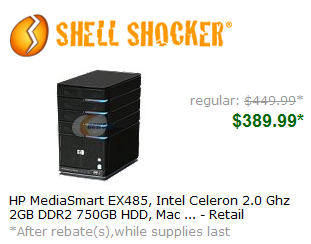
Newegg has one day only Shell Shocker deals. Today's deal is the HP EX485 Windows Home Server . It's $210 dollars off at only $389 plus includes free shipping. No coupon needed. Just click here to take advantage of this deal.

Read the entire post, Leave a comment and More...
1 comments (so far). go ahead and add to the noise.

Tuesday, September 15, 2009

New HP EX49x Series

HP Launches New Home Server with Enhanced Features for PCs and Macs

PALO ALTO, Calif., Sept. 15, 2009 – HP today launched the HP MediaSmart EX490 and EX495 Home Servers, new models offering increased capacity, high-performance processors, more control, new user interface and additional Mac support – all at a lower price.

Based on the Microsoft Windows® Home Server platform, the updated HP MediaSmart Servers have a refined user interface and a web-based home page that makes accessing and using the server easier than ever. Additionally, the new models offer a new video converter with custom settings and profiles that will automatically convert video libraries, including unprotected DVDs.

The explosion of digital content is attracting a new kind of buyer to the home server space,” said Jason Zajac, vice president and general manager, Worldwide Attach Group, HP. “This buyer wants all the power and capacity that past buyers wanted, but also wants it to be easy to use. The new MediaSmart ED490 and EX495 give them both.”

The MediaSmart Server features a new media collector, which allows users to collect media by computer, media type or file location. The server automatically collects and organizes media files across Macs and PCs and streams it across a home network and the Internet.

The HP EX490 and EX495 offer additional features for Mac users, including administration, media collection and a new disc recovery utility providing bare metal recovery on a Mac using Time Machine.

“The new release of HP MediaSmart Server software and hardware continues HP’s leadership in building compelling functionality on top of the Microsoft Windows Home Server platform,” said Russ Madlener, director, Solutions Marketing, Microsoft. “HP is delivering a true cross-platform product by adding the ability to administer the server from a Mac using Microsoft’s new Remote Desktop Connection Client for Mac 2.”

The new video converter automatically converts videos, including unprotected DVDs, into a format that can be played at the home or remotely. Users are able to control how their videos are converted by selecting the device the video will be played on or choosing specific video settings using the advanced controls features.

In addition, owners of an iPod touch and iPhone can download a free HP MediaSmart Server iStream application from the Apple App Store, enabling them to stay connected to their digital media stored on the server. Users can easily access their pictures, listen to their music collections and watch their favorite videos – all streamed directly to their mobile device from their HP MediaSmart Server.

MediaSmart Server EX490 and EX495 features include:

  • New HP Media Collector
  • New HP Video Converter
  • Improved user interface with new web-based home page
  • Mac administration, media collections and a new Mac disc recovery feature
  • HP Media Streamer
  • Server for iTunes
  • PC Hard Drive Backup
  • Server Backup
  • Smart Power Management
  • Processors:
  • EX495: Intel® Pentium® Dual Core
  • EX490: Intel Celeron®; Two gigabytes (GB) of DRAM
  • Expandability: additional drives can be added for up to 7 terabytes (TB) internal storage and 17 TB of storage using internal and external drives.

Pricing and availability

Manufacturer’s suggested retail price for the HP MediaSmart Server EX490 with 1 TB of hard disk storage is $549 while the HP MediaSmart Server EX495 with 1.5 TB is $699.

The HP MediaSmart Server can be preordered beginning today. The servers will be introduced in select European countries beginning next month.

More information is available at www.hp.com/go/mediasmartserver.

Read the entire post, Leave a comment and More...
2 comments (so far). go ahead and add to the noise.

Tuesday, September 1, 2009

The Windows Home Server Team Blog has Moved

imageimage

From Steven from the Microsoft Team Blog:

The Windows Home Server team is pleased to announce our move to a new home on The Windows Blog.  With our product growing up we wanted to be closer to family and friends.  As you can see, we now share the street with the Windows 7 Blog,  the Windows Mobile Blog and other extended Windows family members.

During the transition, archived Windows Home Server team posts will still be accessible at:
http://blogs.technet.com/homeserver.

Please add our new blog address to your RSS feed:
http://windowsteamblog.com/blogs/windowshomeserver/rss.aspx

Read the entire post, Leave a comment and More...
1 comments (so far). go ahead and add to the noise.

Friday, August 14, 2009

Backup SBS to a WHS

image

Yeah it's me. I know, I know. No post is over two months, but I had a free moment and thought I'd let everyone know about an article on Microsoft TechNet about how to backup SBS (Small business Server) to a WHS (Windows Home Server).

Read the entire article on TechNet.

Oh and what have I been doing for all this time? Looking for a job! This is where I plug my resume. Check it out on http://donavon.com/resume/.

Read the entire post, Leave a comment and More...
3 comments (so far). go ahead and add to the noise.

Saturday, June 20, 2009

The Great Windows Home Server Add-In Rip-Off

I woke this morning to see a headline on WeGotServed about a new twitter Add-In for Windows Home Server. As I wrote the popular @WHSTweet Add-In (I think it was the first twitter add-in, but I may be mistaken) I was interested, so I clicked over to read more.

When I got there, I saw a screen shot that looks very familiar. At first I thought it was another review of my @WHSTweet, until I noticed the Remote Control tab. I soon realized that I was not looking at a screen shot of @WHSTweet, but another add-in all together. If you look at the two side-by-side (see above), you will see that the Settings tab is a near word-for-word, feature-for-feature blatant rip off of my UI design! Actually, before I moved things around to accommodate longer words in other languages like French and German, it was a near pixel for pixel match!

They say imitation is the sincerest form of flattery. If that's the case, then KyleWWWW (listed as the "author" of WHS Twit Stat) must love me!

I don't mind that someone else is writing a twitter Add-In for Windows Home Server. That's not the point. But come on! If you're going to rip off someone's UI, at least fix their typo. I haven't looked at the code yet to see if it's all mine too. Actually, I'm not sure I want to at this point. I have more important things to do. If KyleWWWW wants to rip off my code as well, I don't think I have the energy to stop him.

Hold on a second… What is that I see on the @WHSTweet About tab?  A copyright notice? Hmmm…

(Note: The released version of @WHSTweet does not have remote control. That is slated for version 2 as I said in my comments on this blog).

[Read the WeGotServed post] [@WHSTweet post]

Read the entire post, Leave a comment and More...
20 comments (so far). go ahead and add to the noise.

Code: Load the WHS Console in Whatever Language you Choose

 image

This is the first in what I hope is a series of articles on coding for Windows Home Server. In my first article, I'm not coding an Add-In. Instead I'll show you how to load the Windows Home Server Console using any language (or more appropriately stated: Culture) that you desire.

This is of little use for the casual user as the actual console itself (or at least Microsoft's portion) is still in English, but Add-In developers should find this extremely useful. The reason I wrote the loader was that I needed a way to test my twitter Add-In @WHSTweet as I have it translated into German, French and Spanish.

Here is the HP tab of the Windows Home Server Console after I have loaded it in French:

image

Now let's go through just how we build our project. You can also download the complete Visual Studio 2008 solution and follow along at home. But first a word of caution. Whenever messing around with RDPing into your WHS or messing with files in the Windows Home Server folder, you run the risk of messing something up. You my want to do this on a Virtual Machine instead of a production server. Personally I use my production server with all of my important family photos, but my middle name is "Danger". :)

You've been warned, now let's get started:

  1. Load Visual Studio 2008 and create a new C# Windows Application named WHSCultureLoader.
  2. Add a Label with the Text of "Choose a Culture"
  3. Add a ComboBox and change the DropDownStyle to DropDownList.
  4. Add a Button with the Text of "Execute".
  5. Right click on the designer background and select View Code.
  6. Add the following code to Form1 constructor so that it look as follows. What we are doing here is loading the ComboBox with all known Cultures.
    1. public Form1()
    2. {
    3.     InitializeComponent();
    4.     CultureInfo[] ciArray = CultureInfo.GetCultures(CultureTypes.AllCultures);
    5.     foreach (CultureInfo ci in ciArray)
    6.     {
    7.         comboBox1.Items.Add(ci);
    8.     }
    9.     Thread.CurrentThread.CurrentUICulture = Thread.CurrentThread.CurrentUICulture;
    10.     comboBox1.DisplayMember = "DisplayName";
    11.     comboBox1.SelectedItem = Thread.CurrentThread.CurrentUICulture;
    12. }
  7. Next go back to the Designer and double click on the Execute button. This will create an empty the button1_Click function. Add the code as follows:
    1. private void button1_Click(object sender, EventArgs e)
    2. {
    3.     Form f;
    4.     CultureInfo ci = comboBox1.SelectedItem as CultureInfo;
    5.     Thread.CurrentThread.CurrentUICulture = ci;
    6.     try
    7.     {
    8.         string path = Path.GetDirectoryName(Application.ExecutablePath);
    9.         Assembly a = Assembly.LoadFile(path+"\\HomeServerConsole.exe");
    10.         f = (Form)a.CreateInstance(a.EntryPoint.ReflectedType.FullName);
    11.     }
    12.     catch (Exception ex)
    13.     {
    14.         MessageBox.Show(ex.Message);
    15.         return;
    16.     }
    17.     this.Hide();
    18.     f.KeyPreview = true;
    19.     f.FormClosed += new FormClosedEventHandler(f_FormClosed);
    20.     f.Show();
    21. }
  8. In lines 5 and 6 we set the thread's UI culture to the one selected in our listbox.
  9. Next we load the assembly HomeServerConsole.exe from the same path as WHSCultureLoader.exe executed from.
  10. In line 12 we create an instance of MainForm, the main form in the Windows Home Server Console.
  11. In line 20 we hide our selection form.
  12. In line 22 we specify that the form is to receive key events before they are passed to any controls.
  13. In line 23 we setup a handler so that when the form closes, we exit the application.
  14. And finally in line 24, we show the Windows Home Server Console form.
  15. Here is the code for the close handler.
    1. void f_FormClosed(object sender, FormClosedEventArgs e)
    2. {
    3.     Environment.Exit(0);
    4. }

Now lets test our code. Build the project and copy WHSCultureLoader to the \Program Files\Windows Home Server folder on your WHS. You will need to RDP into your WHS to run this loader. It does NOT run from the client. Launch WHSCultureLoader.exe and you should see our main form.

image

Change the Culture to something like French (France) and click Execute. If a few moments the Windows Home Server Console will load. If you are running on an HP MediaSmart Server, you should notice two things. One is that the HP tab is not the first/leftmost tab loaded. This is due to the fact that the HomeServerConsole.exe.config file was not loaded. This file instructs HomeServerConsole.exe on tab order. Here is the config file that ships with the HP:

  1. <?xml version="1.0" encoding="utf-8"?>
  2. <configuration>
  3.     <appSettings>
  4.       <add key="MediaSmart Server"     value="1" />
  5.     </appSettings>
  6. </configuration>

OK, now that we've gotten completely off track, lets continue. The other thing that you will notice is that any Add-Ins that support French (most notably the HP tab) are actually IN FRENCH! The same goes for German and Spanish or at least that's what HP supports in their standard language pack DLLs that they ship to customers in the United States.

Unfortunately, Microsoft does not ship language DLLs for the Windows Home Server Console itself, so any Microsoft code or Add-In will still be in English (or whatever language that your SKU of Home Server is in).

I hope you have enjoyed my first WHS Coding Series article.

Read the entire post, Leave a comment and More...
1 comments (so far). go ahead and add to the noise.

Friday, June 19, 2009

HP LX195 + 1TB external drive only $374

image

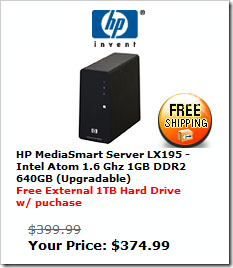
Newegg has a sweet combo deal on the HP LX195 MediaSmart Server. You can get it for only $374 plus free shipping plus they will throw in a Western Digital My Book Essential 1TB USB Hard Drive. This deal is good through 06/25.

Read the entire post, Leave a comment and More...
no comments (yet). why not start the discussion?

Easily Upgrade your Laptop Hard Drive without Missing a Beat

image

Add a Hard Drive to your Windows Home Server

Newegg has a great deal if you are looking to add more hard drive space to your Windows Home Server. Using promo code EMCHDD10A you can take an extra 10% off of any hard drive. My favorite for WHS builds is the Western Digital 1TB green drive. Newegg normally sells it for $84.99, but with the extra 10% off, the price falls to $76.49 (plus free shipping).

But why stop at simply upgrading your server? What about that laptop of yours what's always running out of space or worse yet is making a funny noise like the hard drive seek arm is about to fall off? You know that noise.

Upgrade your Laptop Hard Drive

The 10% off deal is good on all hard drives, even laptop drives. So if that laptop drive is getting a little full, here's what you can do:

  1. Make sure that your laptop is backed up with Windows Home Server.
  2. If you have made changed or added files since your last nightly backup, press the Windows+R keys to bring up the Run dialog and type the following (including quotes) and click OK:
  3. "C:\Program Files\Windows Home Server\BackupEngine.exe" -a -d "Upgrading Hard Drive"

  4. You will see the following from the system tray as your laptop will initiate a backup and incrementally backup any newly changed/added files
    image
  5. If you click on the balloon, you can monitor the backup status:
    image
  6. After the backup is complete, shut down your laptop, unplug it from the AC adapter and remove the battery. You don't want current flowing in your laptop while you are messing with it's internals.
  7. Replace your current laptop drive with something respectable, like the Western Digital Scorpio Blue 500GB drive for only $89 (plus free shipping) or any other suitable drive.
  8. Not all laptops have easily accessible hard drives. With some, you must even remove the keyboard (not an easy task with a laptop). But if you are lucky, yours will have a compartment of the bottom clearly marked "Hard Drive" with arrows pointing to the correct screws. :)
  9. Pop in the disk labeled Home Computer Restore CD into your laptop's optical drive and boot up.
  10. Make sure your laptop is on a hard wired network connection (i.e. not wireless) for the restore.
  11. Follow along with the instruction and your laptop will be restored as good as new, but with a lot more space available.

There is no need to re-install the OS or re-install any applications. You won't even loose important settings. Thanks Windows Home Server.

The 10% off all hard drive offer expires 06/22 so hurry!

Read the entire post, Leave a comment and More...
10 comments (so far). go ahead and add to the noise.

Thursday, June 11, 2009

HP MediaSmart Server LX195 only $329

At Newegg, you can pick up an HP LX195 MediaSmart Server for only $329 plus free shipping after $45 off using promo code SERVER645. This offer expires tomorrow, June 12th so HURRY!

Read the entire post, Leave a comment and More...
no comments (yet). why not start the discussion?

1TB Samsung Hard Drive only $69 at Newegg

image

Newegg regularly has the SAMSUNG EcoGreen F2 1TB drive for $79, but until 06/17/2009 you can get one for only $69.99 (plus get free shipping)! Click here to see this great deal and remember to use promo code EMCLTMM28 at checkout.

I have not personally tried the SAMSUNG drives in any of my builds (have been a WD fan) but with this great deal, I may pick one up.

Read the entire post, Leave a comment and More...
no comments (yet). why not start the discussion?

New @WHSTweet version 1.2 with Direct Message support

@WHSTweet version 1.2 was just released. It supports direct messages (DM) and fixes the bug where tweets go out when you reboot your server. Get the new version at http://whstweet.hshacks.com.

To get notification of early beta versions, follow @WHSTweet on twitter.

Read the entire post, Leave a comment and More...
5 comments (so far). go ahead and add to the noise.

Wednesday, June 10, 2009

Win an HP MediaSmart Server LX195

image

The blog Mommy Goggles is giving away an HP MediaSmart Server LX195. You can click here to read the details, but the contest ends on June 24, 2009. Actually, I've entered the contest just by blogging about it. Sweet!

Read the entire post, Leave a comment and More...
no comments (yet). why not start the discussion?

Get $100 off the HP MediaSmart Server EX485 or EX487

image

Looking to get in on an HP MediaSmart Server EX485? Well now is your opportunity with a $100 off promo code when you buy directly from Hewlett Packard. Simply click on the image to the left and enter promo code AC5681 at checkout for $100 off plus free shipping. HP is selling the EX485 for $599 - $100 = $499 (plus tax if applicable).

The offer is good from June 1 through July 31, 2009. I just tried the promo code and it works!

Read the entire post, Leave a comment and More...
1 comments (so far). go ahead and add to the noise.

Monday, June 8, 2009

Hands on WHS build with the Intel D945GSEJT (only 14 watts)

Last week I ordered the new low power Intel Atom powered motherboard, the D945GSEJT. It is a fanless, ultra low profile "half-height" (less than 2 cm high!) mini-ITX motherboard. I used it to build a Windows Home Server with 1GB of SDRAM and a Western Digital 1TB hard drive. The whole thing draws from 12-16 watts when idle which it truly amazing compared to anything else out there including HP's low powered LX195 (which draws 26W).

image image

Here is my shopping list:

Total build cost (minus a case, but including the OS) is $311. So as you can see, this will run you slightly more than the FX195 build that had a few weeks ago, but still under the $399 MSRP of HP's LX195. Plus (and this is a BIG PLUS) at 14 watts, it draws almost HALF that of the LX195.

Notes/caveats:

  • I built the whole thing on the bench and have yet to decide on a case, but I wanted to get these photos and build instructions out ASAP. Obviously, I would recommend that you do your build in a suitable case.
  • A traditional power supply is not needed, making this system completely silent (well except for a spinning hard drive). It uses a an external 12V "power brick.
  • I was observing power fluctuations of between 12 and 16 watts. I chose 14W as an average.
  • You could probably get away with the lower wattage 2A power brick, but I already had a 5W adapter on hand.

That said, here's how to build yourself a great little low cost/low power WHS!!

  1. We will be installing the OS from a USB stick, so first make a bootable WHS USB stick from instructions here.
  2. Next "borrow" a monitor and USB keyboard and mouse and plug them into the mainboard. (Note: we won't be needing them after the build).
  3. Insert the laptop SDRAM.
    image
  4. Attach the SATA power connector to the main board
    image
  5. Attach the SATA data cable to the mainboard
    image
  6. Attach the SATA power and data cables to the drive
    image
  7. Plug in the 12V power adapter
    image
  8. Now after I tell you about this next step, I want you to forget that you ever heard it from me. Because I didn't built up my unit in a case (i.e. on the bench) I didn't have a momentary switch handy. Therefore, to turn on the computer, I use a screwdriver to momentarily short the power pins together. The power switch normally connects to the two pins marked with red (see photo insert below).
    image
  9. After the tedious hour long OS install and there you have it, you will have yourself one lean mean fighting machine, um… one of the lowest powered Windows Home Servers that you can buy!

Read the entire post, Leave a comment and More...
22 comments (so far). go ahead and add to the noise.