Stuff to pimp your Windows Home Server

Hacking Windows Home Server is a blog dedicated to Microsoft's WHS technology. Brought to you by Donavon West, Microsoft MVP and author of LiveGadgets.net and donavon.com I'll also discuss the Hewlett-Packard HP MediaSmart Server EX470, EX475, EX485, EX487, the T7-HSA Tranquil Harmony Home Server and any other new Home Server hardware platforms that arise. You can also call this hacking or hackz. In any case I will show you some cool things to make your Microsoft Windows Home Server even sweeter.

A blog devoted to getting the most out of your
Windows Home Server by Microsoft MVP Donavon West.
Showing posts with label software. Show all posts

Tuesday, September 29, 2009

Free Microsoft Security Essentials Anti-Virus Software

image

Not exactly Windows Home Server related (there is a lane tie-in), but I thought you may want to know that Microsoft today has released it's Security Essentials anti-virus software for XP, Vista and Windows 7 (both x86 and x64).  Go out and get your free copy here. I hear that analysts are saying that it's actually pretty good.

image

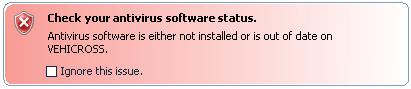
So what's the lame tie-in to Windows Home Server? You can finally get your WHS to stop displaying that red icon as it complains that your network is critical because you don't have anti-virus software. :)

 image

Read the entire post, Leave a comment and More...
14 comments (so far). go ahead and add to the noise.

Thursday, June 11, 2009

New @WHSTweet version 1.2 with Direct Message support

@WHSTweet version 1.2 was just released. It supports direct messages (DM) and fixes the bug where tweets go out when you reboot your server. Get the new version at http://whstweet.hshacks.com.

To get notification of early beta versions, follow @WHSTweet on twitter.

Read the entire post, Leave a comment and More...
5 comments (so far). go ahead and add to the noise.

Thursday, June 4, 2009

Browsing Amazon S3 Data

I was using the WHS Add-In JungleDisk until I acquired an ioSafe Solo 1.5TB Fireproof Waterproof External Hard Drive (GREAT product, BTW. See my review). Since then I've uninstalled JuingleDisk and now I have a couple gigabytes of data that I don't need just sitting around on S3 costing me about $9/month. How do I get rid of it? There is an application that lets you maintain your Amazon S3 "buckets". It is called SpaceBlock. It's a simple app that  allows you to browse your buckets and even delete files.

I've had SpaceBlock installed on my machine for a while now, but I never really think about deleting the my S3 files like I should. Thanks to Phil over at MSWHS for posting this today. It gave me the poke in the rear that I needed to remove the files. Below you can see that I'm deleting over 25,000 files from S3, which will save me around $9/month.

image 

[via MSWHS via SQLTeam]

Read the entire post, Leave a comment and More...
3 comments (so far). go ahead and add to the noise.

Wednesday, June 3, 2009

Microsoft Giving Away Windows Home Server for FREE (CANCELED)

Note that this deal has been canceled!

No joke, they actually are giving it away (well, in a round about way, but still). Microsoft is giving away a 3 month TechNet Plus subscription which will not only get you a free downloadable copy of Windows Home Server (with CD Key of course), but all of your other Microsoft favorites as well like Windows 7, Office 2007 and more.

A one year Technet Plus subscription normally goes for $349 (and even that's a great deal) but you can get your for free if you live in Canada, the United States or the United Kingdom.

image

[via WebKeeps via Ars Technica]

Read the entire post, Leave a comment and More...
9 comments (so far). go ahead and add to the noise.

Saturday, May 23, 2009

Give your Windows Home Server its own Twitter account (Updated)

image

Last week Microsoft launched it's Windows Home Server Technical Library and as I mentioned, I was all caught up in the excitement and started playing around with writing a Windows Home Server Add-in of my own. Well today, I am happy to announce that I've written my first Add-In for Windows Home Server, @WHSTweet.

 Version 1.2.0.969 (view change log)

@WHSTweet is a Windows Home Server Add-in that monitors your WHS health status (i.e. the little messages that appear in the tray when you have "Display Network Health Notifications" turned on the in the Windows Home Server Connector). When the health status changes (i.e the color of the icon changes), the add-in will send a twitter update. Here is a sample taken from my actual WHS twitter account @DonavonsWHS.

image

Get your server it's own twitter account

You probably have a twitter account already, but you will want to get another one for your Windows Home Server. A computer with it's own twitter account? Strange, I know. But if your server were to use your personal account, your followers/friends would receive your WHS status updates and they probably don't want that. For my own WHS, I setup a new twitter account named DonavonsWHS. I follow that account with my personal twitter account.

Installation Instructions

  1. From a client PC,click the overly obvious orange Download button near the top of this article to download the MSI installer and save it to your local drive.
  2. Also from a client PC, open the folder share \\server\software\Add-Ins (where server is the name of your WHS). Copy the download installation file into the folder share above.
  3. Run the WHS Console by double clicking the WHS Connector icon in the lower right hand corner of your client PC (the little green house with a checkmark).
  4. Once the console is loaded, click on Settings
    image
  5. Click the Add-Ins tab, then on the Available tab, then Install for @WHSTweet.
    image 
  6. Once the Add-In installs, the console must be closed, then reopened.
    image

Setting up @WHSTweet

Now that the Add-In is installed, you will need to set it up. As the service uses twitter to send out updates, we need to tell the Add-in the username and password of the account to use. Most of you probably already have a twitter account, but you will want to get another one that you will dedicate for your Windows Home Server.

A computer with its own twitter account? Strange, I know. But if your server were to use your personal account, your followers/friends would receive your WHS status updates and they probably don't want that. For my own Windows Home Server, I setup a new twitter account named @DonavonsWHS. I follow that account with my personal twitter account @donavon.

New twitter account in hand, let's setup @WHSTweet!

  1. Reopen the console and click on Setting again
    image
  2. Click on the @WHSTweet tab on the left. It should be right under the Add-Ins tab.
    image
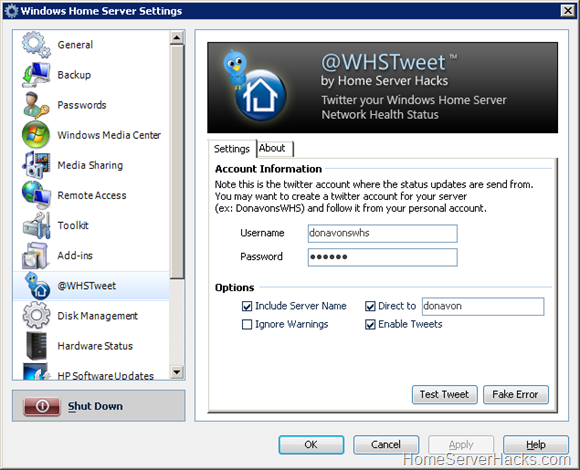
  3. Enter your newly created server twitter account username and password.
    image
  4. There are also several Options that you can set to control @WHSTweet.
    image

    Include Server Name - If you have more than one Windows Home Server (don't laugh, several of my beta tester do), you may want to know which one caused the notification. Checking Include Server Name will prefix every tweet with the name of the server. This will allow you to use one twitter account for all of your servers.

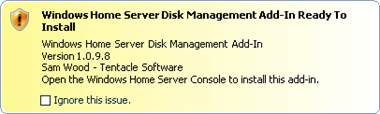
    Ignore Warnings - Check Ignore Warnings and you will only be alerted for critical health notifications (i.e. ignore yellow warnings such as "New Add-In ready to Install".

    Direct to – This will allow you to send direct messages (DM) to a particular user, likely yourself, instead of sending public tweets or protecting your updates. This is a more secure way to get notified of your WHS status.

    Enable Tweets
    - If you ever want to temporarily disable health status tweets (ex: you are doing maintenance on your WHS and don’t want the tweets to go out) you can do so by unchecking Enable Tweets.
  5. To test if your username/password were entered correctly, you can send a test tweet by clicking on the Test Tweet button. @WHSTweet will report if the tweet was successful or in error. You need not click Apply before performing the test.
    image
  6. You may have noticed the Fake Error button above. Whatever you do DON'T PUSH IT! (Just kidding, I'll cover that below)

Testing @WHSTweet in a Real World Scenario

Now that you have the software installed, you'll want to see it do something, right? Here are a few things that you can do to cause a health status change. Proceed with each at your own risk.

  • Let your two year old start pulling hard drives while the system is running (I DO NOT RECOMMEND that you do this)
  • Temporarily disable your firewall on one of your client PCs. (again, at your own risk)
  • If you have an add-in available but not installed and you are ignoring the alert, uncheck Ignore this issue. Wait 10-15 seconds, and then recheck the box. This will only work if you have Ignore Warning unchecked in @WHSTweet.
    image 
  • But the easiest way is with that Fake Error button. Remember that button from above? The one you didn't push? :) What Fake Error does is simulate a critical health problem using the WHS APIs. The simulated error look like any other health problem to WHS and to the @WHSTweet service, thusly it is sent out just like any other error condition. @WHSTweet will remove the simulated error, simulating that you resolved the error (whoa, heady) in 60 seconds.
    image

Other things to know/Best practices

When you create your server's twitter account or setup @WHSTweet, here are some suggestions.

  1. Single Administrator – If you are the only person administering your WHS, then you may want to enabled "Direct to" and enter your twitter username as the recipient. This will make it so that status updates go to you and you alone.
  2. Group of Administrators – If you share administration duties of your WHS with a group of people, you won't be able to use direct messages (i.e. uncheck "Direct to"). In this case, I suggest that you "protect your updates" (Note: this is not a @WHSTweet setting, but something you do on twitter.com). This will let only people you approve to see your status updates. You may not want to tell the whole world that your firewall is down. :)
    image
  3. Give your server's twitter account a cool avatar – You will get status updates from this account, so make the picture associated with the account something related to Windows Home Server. Try one of these that I've created or make your own. Just right-click and save to your computer.


Feedback Please

@WHSTweet has gone through many hours of testing by some dedicated beta testers. Now I'm opening it up to the general public. I have some more features planned, but I'd like to hear from you to see what you would like to see. Send your feedback to WHSTweet@domain.com (where domain = HomeServerHacks). You can also sent me a tweet at @HomeServerHacks or leave a comment below.

Change Log

1.2.0.969
  • Added support for Direct Messages (DM)!!!
  • Fixed the critical error reporting on reboot bug.
  • Changed the twitter bird logo.
  • Things were getting a little crowded, so I introduced a tabbed interface.
  • Removed #WHS from test tweets to reduce what some have called "spam" (sorry 'bout that!)
  • Changed the code to accept localization (i.e. multiple languages). If you would like to volunteer to convert a resource file into your native language, send an email to whstweet@domain.com (where domain = homeserverhacks) and specify the language that you can convert.
1.0.5.1106
  • First public release.

Read the entire post, Leave a comment and More...
57 comments (so far). go ahead and add to the noise.

Friday, May 15, 2009

Microsoft starts the Windows Home Server Technical Library

image

If the letters and numbers in the example above make sense to you, then you are likely a C# developer. If so, you will be happy to hear that Microsoft has started a technical library for everything WHS. It's called the Windows Home Server Technical Library. Previously, Windows Home Server documentation, code samples, etc were scattered here and there. Now there is one place for all things related to Windows Home Server.

If there's anything else you would like to see, Microsoft is open to adding more documentation, so please let me know and I'll forward that request along.

After checking out the new library, I even caught the bug and I've started playing around with some code of my own. I'm not sure where it will lead, but if I come up with anything cool, I'll post some code samples here.

Read the entire post, Leave a comment and More...
1 comments (so far). go ahead and add to the noise.

Friday, May 1, 2009

Installing HP MediaSmart Server 2.5 Update on the EX470

image

When HP released the new version 2.5 software update about a week ago (which included the iPhone media streamer) the older EX470 models were left unsupported. The reason stated was because these older server just didn't have the horsepower to run the new streaming software. Anyone who has modified their EX470 with a 2GB memory upgrade or a CPU upgrade knows that this just isn't the case.

Luckily the ingenuitive folks over on MediaSmartServer.net have figured out a hack to get the update to install. This hack in definitely at your own risk but if you have the cojones, head on over and check it out at the MediaSmartServerWiki.


Read the entire post, Leave a comment and More...
16 comments (so far). go ahead and add to the noise.

The New LX195 Easter Egg

image

Remember the cool HP MediaSmart Easter Egg? Well it's still hidden away inside of the new HP MediaSmart Server LX195. It has all of the same themes, but they aren't quite as cool as there is only one drive LED. It appears as though the UI has been removed (i.e. you can't click the server image while holding down the Ctrl + Alt + Shift keys) so you will have to change the registry to see it in action (instruction here).

They still have a Morse Code Credits theme but with new text:

"Dan Thero, Matt Haines, Jerry McCollom, Dave Hanes, Jason Goldman, Matt Fischer, Bryce Wemple, Tharuvai Sundaram Venkateswaran AKA TSV, Eric Peterson, Jim Long, David Lyle, Paul Cesario, Ron Gile, Jack Yang, Bernd Sitzmann, Steve Travis, Greg Lipinski, Fred Thomas, Paul Boerger, Christie Chaney, Jim Anderson, Charlie Radman, Drea Babcock, Nick Jennings, Kim Sipes, Amy Trefethen, Russ Wiechers, Allan Greentree, My Therapy Buddy, Mary Kay Meininger, The Microsoft Windows Home Server Team, and PS, Yes testers, we know that this was a run-on sentence, but we are not fixing it."

It's not surprising that former HP employee Alex Kuretz (Microsoft MVP and founder of MediaSmartServer.net) has been removed from the credits, but how could they diss Bill Hewlett and Dave Packard? :)

I'm still searching for new Easter Eggs and will let you know if I find any.

Read the entire post, Leave a comment and More...
no comments (yet). why not start the discussion?

Thursday, April 30, 2009

Run the Windows Home Server Console on a Mac

image

The instruction are not for the faint of heart, but Windows Home Server team member Gautam shows how to run the Windows Home Server Console on a Mac, using Remote Desktop Connection Client for Mac. This should be perfect if you are a Mac user and are looking at the new HP LX195. :)

Read the entire post, Leave a comment and More...
6 comments (so far). go ahead and add to the noise.

Monday, March 23, 2009

Windows Home Server Power Pack 2 Now Available!

image

The wait is over. Power Packs 2 for WHS is finally here and now available for download!

Power Pack 2 adds new features to improve the Windows Home Server experience for consumers. The update includes enhancements for remote access configuration and computers running Windows Media Center, along with content streaming support for Windows Media Center Extenders. Power Pack 2 also includes Italian language support in addition to existing Chinese, English, French, German, Japanese, and Spanish versions.

The English version of Power Pack 2 will be available on March 24 and will automatically install as part of Windows Update if Automatic Updates is enabled on the home server (How to turn on automatic updates). Users need to have Windows Home Server with Power Pack 1 already installed on their home server beforehand. Chinese, French, German, Japanese and Spanish is currently scheduled to be available before the end of April.

Timed with the release of Power Pack 2 comes the launch of Windows Home Server in the Microsoft Developer Network (MSDN). With more than 100 add-ins developed for Windows Home Server, MSDN availability offers a larger community of professional developers to build new applications and solutions on top of the Windows Home Server platform.

Here are some of the new features:

Remote Access

The Remote Access Settings page is redesigned to make it easier to use.

A Web-hosted diagnostic service is used to more accurately test if remote connectivity is available from outside the home network.

New and improved initial configuration and repair wizards, as well as better troubleshooting guidance for common home networking issues that can prevent Remote Access from working properly

Media Sharing and Windows Media Center PCs

The most interesting new feature is the new media features. When the Windows Home Server Connector software is installed or updated on a Windows Media Center computer, the next time a user starts Windows Media Center they will be prompted to install the Windows Media Center Connector

Windows Media Center computers will automatically have access to content stored in shared folders on the home server.  Music, Photos, Videos, and Recorded TV folders are enabled by default.

Windows Media Center Extenders can access and stream multimedia content stored on the home server.  Access permission can be granted on an individual folder basis.

Windows Home Server now supports streaming MP4 files, a popular format for high quality multimedia, to Xbox 360 and other devices that support the MP4 format.  Metadata such as title, artist, composer, album, and genre now appears in the music or video library.

image 

For more information on these and all of the new features, see the announcement on the WHS Team Blog.

Read the entire post, Leave a comment and More...
18 comments (so far). go ahead and add to the noise.

Thursday, March 19, 2009

Backup Software or what I did (or didn't do) before Windows Home Server came along

WHS Computers and Backup tab

Everyone backs up their desktop computer or laptop computer every day, right?  OK, at least once a week? No. You are not alone. Before I got my Windows Home Server, I think I backed up by laptop a total of zero times. None. Zilch. Nada. Goose Egg.

I know that there are plenty of inexpensive solutions out there. I could have used the built in backup feature in Windows Vista. Or I could have bought some commercial backup software like Acronis True Image Home or Backup4all. Sure I could have, but that would require that I think about backup software (about as much fun as watching paint dry).

There are even several review sites (CNET or PC Magazine for example) that would have listed out for me what the leading backup software does, feature by feature.

No I didn't do any of that. Somehow I lucked out and upgraded my laptop or the hard drive to a larger or faster model before disaster struck.

Then about a year and a half ago I purchased my first Windows Home Server (the HP EX470). Even after that I didn't start thinking about backup software. And that's exactly the point. With Windows Home Server's image based backup, you don't have to. Each and every night, the PCs in my house are backed up automatically!

And the cool thing about the WHS solution is that if you have common files on two or more computers, say the same 100MB file on 3 computers, it only takes up 100MB when backed up. Not 300MB like it would with traditional backup software.

Recently, the folks over on the Windows Home Server Team Blog did a post about their backup solution and how it compares to traditional backup software; explaining a little about image based backup. The one thing I found odd was their use of the phrase "time machine" (Apple's backup solution is called Time Machine). Actually, the WHS solution can be thought of as a Time Machine on steroids! Was this a slip or an intentional lower case non-branding on their part? smile_wink

Read the entire post, Leave a comment and More...
4 comments (so far). go ahead and add to the noise.

Thursday, February 12, 2009

Syncing Two Windows Home Servers

Syncing Two Windows Home Servers

You have two Windows Home Servers and you want to keep the files on the folder shares synchronized (i.e. mirrored). Why would you want to do this? Maybe you're ultra paranoid about hardware failure. Maybe you just built up a new powerful DIY box (to replace an older server) and want to weed out any stabilization issues with the new machine before you do the actual cutover. Whatever the case may be, how do you go about keeping the data on the two servers synchronized?

This article will show you how to use a free application (um, toy) from Microsoft called SyncToy 2.0. I first showed you SyncToy back when talking about the Flip Mino HD, so forgive me if this article appears to repeat some of the steps outlined there.

  1. Download the SyncToy 2.0 installer onto one of your Windows Home Servers. I decided to "push" files to the other server instead of "pulling" them, but I don't think either way matters very much.
  2. Remote into your WHS. You are installing the software from the desktop of your server, not from a client PC.
  3. Run the installer and you will see a dialog asking permission to install Microsoft Sync Framework. SyncToy (the application) uses this framework to do it's stuff.
  4. After the framework installs, SyncToy the application will be installed.
  5. I won't bore you with the next 4-5 screen, but basically you can just click Next accepting the defaults. The app will then install and you click Close.
  6. With SyncToy installed, we will now setup the folder pairs that you want synchronized. A "folder pair" is just that: a pair of folders (one on the "left" and one on the "right") that you want to keep in sync.
  7. Click Start, All Programs and the on SyncToy 2.0
    image
  8. When SyncToy first runs there are no pairs setup, so click on Create New Folder Pair.
    image
  9. In my case, I am syncing data between my current server named HOMESERVER and the new one named SERVER. Clever names, huh? My goal is to have the server reflect any changes and/or new files that are on homeserver. Essentially server will become a mirror of homeserver.
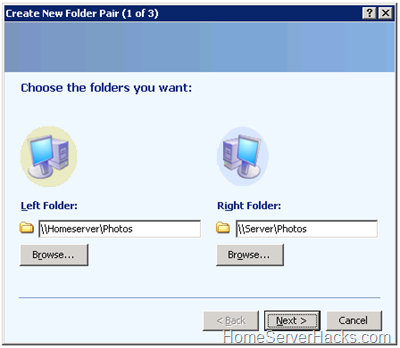
  10. With that in mind, we will start with the Photos share. On the left, I type \\Homeserver\Photos and on the right \\Server\Photos and click Next.
    image
  11. Next I select Echo as the type of synchronization and click Next. Echo will keep the right computer looking just like the one on the left.
    image
  12. The last step is naming my pair. Type in something appropriate and click Finish.
    image

Repeat this procedure for each folder share that you would like to synchronize (probably all of them). Note that when syncing your Users share, you must create a separate pair for each user (e.g. \\HomeServer\Users\Donavon and not just \\HomeServer\Users).

image

At this point my pairs look like this (above). Let's see if we have things setup properly. Click on All Folder Pairs then Preview All. SyncToy will show you every action that it need to take, but in Preview mode it doesn't actually perform the actions (we'll have it do that later, while you are sleeping).

Scheduling

Once you have all of your pairs defined, we need to schedule these to run unattended and in the background. SyncToy 2.0 does not do this for you, but we can use the scheduler built into Windows 2003.

To schedule a SyncToy to run as a task:

  1. From the Start menu, select All Programs - Accessories - System Tools - Scheduled Tasks.
  2. Select Add scheduled task to start the Scheduled Task Wizard. You will see a list of possible programs to run.
  3. Select Browse and locate the SyncToyCmd.exe (in the Program Files\SyncToy 2.0 folder)
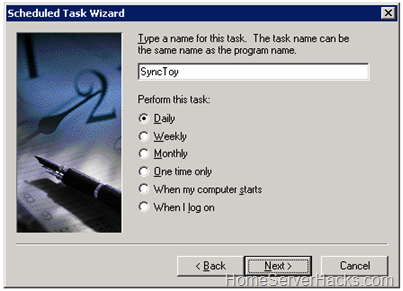
  4. The wizard will next prompt you for a name and how often you want to run the scheduled SyncToy (for example, daily, weekly, et cetera). Select a frequency (I chose Daily) and a name that makes sense, such as SyncToy.
    image
  5. The next page asks when to start the task. Select a start time.  3am seems like a good time. That should give your WHS backup time to complete. You can adjust this time if necessary.
  6. The next page asks for the user name and password to run the program under. You will likely choose teh username Administrator. Please note that you should use the same username setup on teh opposite server and use the same password in order for the folder share to work.
  7. The final page contains an option to open the properties dialog when the wizard ends. Select this checkbox.
  8. Modify the Run textbox to include the –R command line option. –R all by itself will run all folder pairs that are active for run all.
  9. When you are finished the dialog should look like this:
    image

Note: If the folder pair name contains a space, surround it with quotation marks, as the example above shows. For another example, assume that SyncToy is in the folder named C:\Program Files\SyncToy 2.0 and that you want to run a folder pair named "My folder pair." Enter the command line as follows, including the quotation marks: "C:\Program Files\SyncToy 2.0\SyncToyCmd.exe" -R "My folder pair." Note that there are two sets of quotation marks in this case: one is around the path to the SyncToy program file and the other surrounds the folder pair name.

Verifying

After you let it run overnight, the next morning you may want to verify that the sync actually worked. You can spot check a few files, but there is a better way. Remember the Preview All procedure that we ran above? The first time it yielded a list of operations to perform. If SyncToy successfully ran, there should ne no operations to perform at this point. Run SyncToy and click on All Folder Pairs then Preview All.

SyncToy also keeps a handy log file that will show you all operations performed. Click File, View Log.

Conclusion

SyncToy is a useful little utility that WHs users should be aware of. This article talked about keeping two servers in sync. But you could even use SyncToy to initially get two servers in sync (and to verify that they are in sync) before decommissioning your old server (i.e. use SyncToy as essentially a migration tool). Even if you don't need it right now, keep it in mind. I bet you will find other instances down the road where SyncToy will come in handy.

Read the entire post, Leave a comment and More...
14 comments (so far). go ahead and add to the noise.

Tuesday, February 10, 2009

Misplace your WHS installation key?

Magic Jelly Bean Keyfinder

I'm fortunate enough to have several Windows Home Server machine in use around the office. But because of this, I've been careless ad have not properly written down which WHS System Builder DVD key goes with which server. In an attempt to do a properly inventory, I needed to retrieve the installation keys from the servers themselves.

Enter a free open source program called Magic Jelly Bean Keyfinder. With it I can retrieve your Windows Home Server system installation key and the keys of many other installed software. Please remember to use this application for good and not evil (that is to say that you shouldn't steal your friend's key).

Read the entire post, Leave a comment and More...
3 comments (so far). go ahead and add to the noise.

Monday, February 2, 2009

Have WHS Shut Down Remote PCs

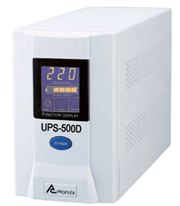
image Alex Pummer has written an interesting article on how to have your Windows Home Server shut down remote computers. His explanation is that if the WHS is connected to a UPS and the battery goes critically low, not only should the WHS shut down gracefully, but it should instruction remote PCs to do the same.

My first reaction is that remote PCs (like the one say in your son's room for example) likely died the second the power was lost in the first place. Therefore it will not be around to listen to the shutdown command.

But where this does come into play (and and he explains) is when you have multiple PCs plugged into one UPS, as you might in a home office for example. The UPS can only instruct a single PC that it's battery is critical. That one PC could shutdown the others. Read more of Alex's article here. He has an interesting solution.

In related news, Grid Junction author Alexander Kent released 1.35 RC2 over this past weekend. You may find it easier to setup than doing it yourself (although I don't believe it has "remote shutdown" capabilities). Check it out at http://www.gridjunction.com.

Read the entire post, Leave a comment and More...
6 comments (so far). go ahead and add to the noise.

Thursday, January 29, 2009

Windows Live Writer and WHS

image Windows Live Writer jock Scott Lovegrove wrote a blog post about how to make your Windows Live Write draft posts store onto your Windows Home Server instead of your local drive.

Why would you want to do this? I'll give you a real world example: Many times I will write up a long article. But before I post, I'll have my wife do a quick once over and grammar check from her laptop. Right now I have to send her the draft. If we both were using Scott's method, she could simply make her edits. After she saved the file, I could open the file back up and do my post.

Check out his article.

Read the entire post, Leave a comment and More...
no comments (yet). why not start the discussion?

Thursday, January 8, 2009

Running Windows Home Server Connector on Windows 7

image

Beginning tomorrow, January 9th, you will be able to download Windows 7 from the Windows 7 page on Microsoft.com. It will be an ISO image that will have to burn to a DVD using something like Roxio or Nero.

Let's say you decide to take the plunge. After all sitting on the sidelines is for wimps and  you’re no wimp. The first thing you thinking is: “Will it work with WHS”? Fortunately the answer is Yes. (Ok, the first thing you will be thinking is “is this thing going to kill by computer”).

Installing the Client

As with any new PC you bring into your home, you will need to install the Windows Home Server Connector software (i.e. the WHS client) in order to do automated backups. I’ll show you how to install the client without using the client CD and without using a folder share:

  1. From your Windows 7 machine, open Internet Explorer and browser to http://server:55000 (where server is the name of your WHS).
  2. Under Windows Home Server Connector Setup, click Download Now.
    image
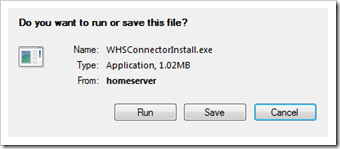
  3. Internet Explorer will ask if you want to Save or Run. Click Run.
    image
  4. In a few moments the client setup will run. 
    image
  5. You will be asked for the Administrative password:
    image
  6. Choose your preference for the following:
    image

    image
  7. And in a few minutes, installation is complete. 
    image
  8. The WHS Connector client is not installed.
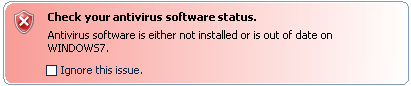
  9. You will immediately get this warning on all of your Home Computers as Anti-virus software is not installed on your new Windows 7 computer, but You can ignore this by checking Ignore this issue in the Windows Home Server Console.
    image 
    image

Backup

The console runs as expected (it is simply a remote desktop session running on the WHS itself). When I look at the Backup tab, I see my new Windows 7 computer (which I creatively named “Windows7”), but it is identified as Windows Vista Ultimate. No big deal. That will likely be fixed in a Windows update.

image

Clicking Backup Now did as expected. It started a backup of my new Windows 7 machine.

image

It was done in an amazing 9 minutes and backup up just over 230GB.

image

I was even able to open up the backup up volume on Windows 7, which is still one of the coolest underused featured of Windows Home Server.

image

Remote Access

Remote access to your new Windows 7 computer is done the same as it is with any other PC in your house (any PC running VP Professional, Windows Vista Ultimate or Business Edition that is). Log onto your computer with your remote URL (e.g. http://yourdomain.homeserver.com), log in and click on the Computers tab. As you can see below
image

If you do not see Available for Connection, but instead see Connection disabled, click Start then type remote access and press Enter. You should be presented with a dialog that will allow you to set your remote desktop preferences. Click Allow connections (see below) and click OK. You may have to restart Windows 7 for this to take effect.

image

One you do see Available for Connection, click on the name of your Window 7 machine and you will get this dialog:

image

Click OK and you should see the Windows 7 Ultimate logon screen. Go ahead, log in. I'm happy to report that remote access works just fine too!

image

Conclusion

I have seen nothing about Windows 7 that makes it incompatible with Windows Home Server thus far.

Read the entire post, Leave a comment and More...
42 comments (so far). go ahead and add to the noise.